TL;DR
A Hostinger KVM VPS is the right home for a persistent Node.js app (Express, Next.js in Node mode, NestJS, or Socket.io) when you want root access, custom ports, long-lived processes, and flat pricing without big-cloud complexity. Plans run from $6.49 a month (KVM 1) to $25.99 a month (KVM 8) on promotional 2-year terms, renewing at $11.99 to $49.99 a month.
The production-grade stack in 2026 is Ubuntu 24.04 LTS, Node.js 24 "Krypton" (current Active LTS, supported through the end of April 2028), PM2 as the process manager, Nginx as a reverse proxy, and a free Let's Encrypt certificate via Certbot.
A VPS is self-managed. You own security hardening, uptime, patching, and backups. That is fine for side projects through small production apps. If you need managed autoscaling or enterprise SLAs, a managed platform or a partner like Brandrums is the better call.
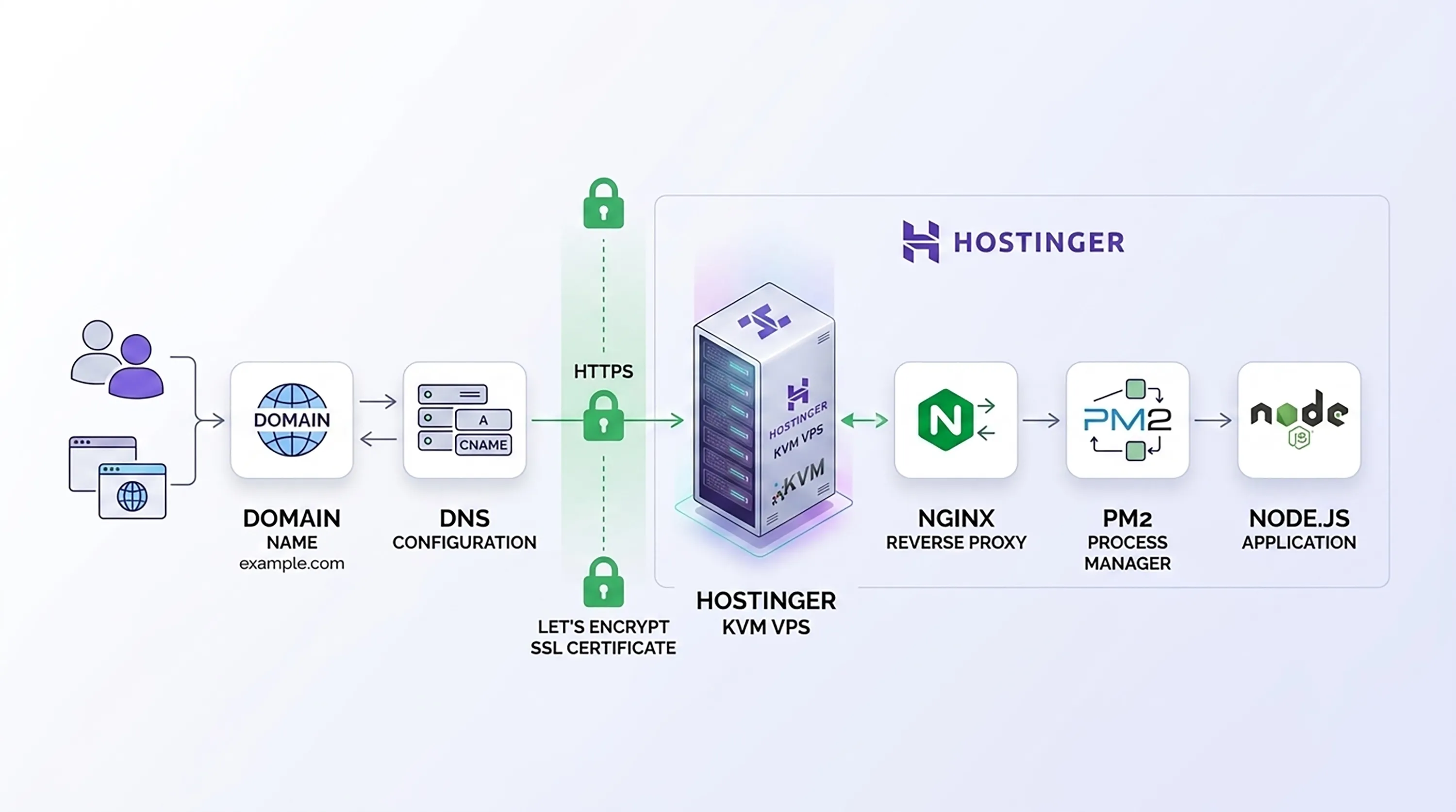
Architecture diagram of a Hostinger KVM VPS running Node.js behind PM2 and Nginx with Let's Encrypt SSL and a domain pointing in
Why a VPS for Node.js
Shared hosting is built for PHP: Apache or Nginx with PHP-FPM serving files. Node.js needs a persistent long-running process, custom port bindings, and WebSocket support, which shared hosting does not do well.
A VPS gives you root access, full OS control, persistent processes, custom ports, a dedicated IP, and predictable flat pricing. The trade-off is that you self-manage security, updates, and uptime. That is the same trade-off we frame on the AWS side in our AWS for non-technical founders guide: the platform gives you primitives, and you own what sits on top.
Versus managed platforms (Vercel, Render, Railway): these offer push-to-deploy and zero DevOps, but cost can scale unpredictably and you have less control. Vercel is purpose-built for Next.js front ends but is serverless (cold starts, not ideal for persistent connections or long-running jobs); for a deeper comparison of the Next.js deployment options on cloud, see our Next.js on AWS guide. Render offers predictable per-service pricing. Its Standard web service is $25 a month (2 GB RAM, 1 vCPU) per Render's official pricing page. Railway uses usage-based pricing that scales to zero.
Versus big cloud (AWS): more power and managed services, but far more complexity and a steeper learning curve. For founders who are not yet sure which path fits the product, our WordPress vs custom build guide walks the same "start light, graduate when it earns the cost" logic.
A Hostinger VPS is a good choice for cost-conscious developers, technical founders, and small businesses who want full control for side projects through small production apps. It is not the right choice when you need managed autoscaling, multi-region failover, or enterprise SLAs.
Hostinger VPS overview and 2026 pricing
All plans use KVM virtualisation, AMD EPYC processors, NVMe SSD storage, a dedicated IPv4 address, full root access, a 1 Gbps network, and free weekly backups. Confirmed plans on hostinger.com/vps-hosting:
Plan | vCPU | RAM | NVMe | Bandwidth | Promo | Renewal (2yr) |
|---|---|---|---|---|---|---|
KVM 1 | 1 | 4 GB | 50 GB | 4 TB | $6.49/mo | $11.99/mo |
KVM 2 | 2 | 8 GB | 100 GB | 8 TB | $8.99/mo | $14.99/mo |
KVM 4 | 4 | 16 GB | 200 GB | 16 TB | $12.99/mo | $28.99/mo |
KVM 8 | 8 | 32 GB | 400 GB | 32 TB | $25.99/mo | $49.99/mo |
Pricing is promotional (intro price for the first term, then a higher renewal). Always confirm the live price at checkout.
Key features: full root access via SSH, KVM virtualisation, NVMe SSD, a dedicated IP, and a choice of 11 Linux distributions (Ubuntu, Debian, AlmaLinux, Rocky Linux, CentOS, Fedora, Arch, Alpine, openSUSE, CloudLinux, and Kali). You also get the hPanel control panel, the Kodee MCP-powered AI assistant built directly into the browser Web terminal (included free, no separate subscription), Wanguard DDoS protection, the Monarx malware scanner, free weekly backups plus manual snapshots, a browser-based Web terminal for one-click root access, a public API, and one-click templates including MERN and MEVN stacks (which pre-install PM2, Certbot, and Nginx), plus CyberPanel, CloudPanel, cPanel, and Docker.
For Node.js, KVM 1 suits dev and test plus small apps. KVM 2 (2 vCPU, 8 GB) is the recommended starting point for small production apps.
Two billing notes worth knowing. Daily automated backups are a paid add-on (weekly are free). Hostinger's official support page on activating daily backups does not publish a fixed dollar figure (it is shown at checkout and is plan and term dependent), but Hostings.info's 2026 Hostinger VPS review reports the checkout price: "although weekly backups are included, they give the option to choose automated daily backups at $6.00 per month." Also, only one manual snapshot is stored at a time per the official Hostinger Help Center (creating a new one overwrites the previous one), and snapshots auto-delete after 20 days. SSL is not auto-provisioned on a VPS the way it is on shared hosting; you install free Let's Encrypt yourself.
Prerequisites
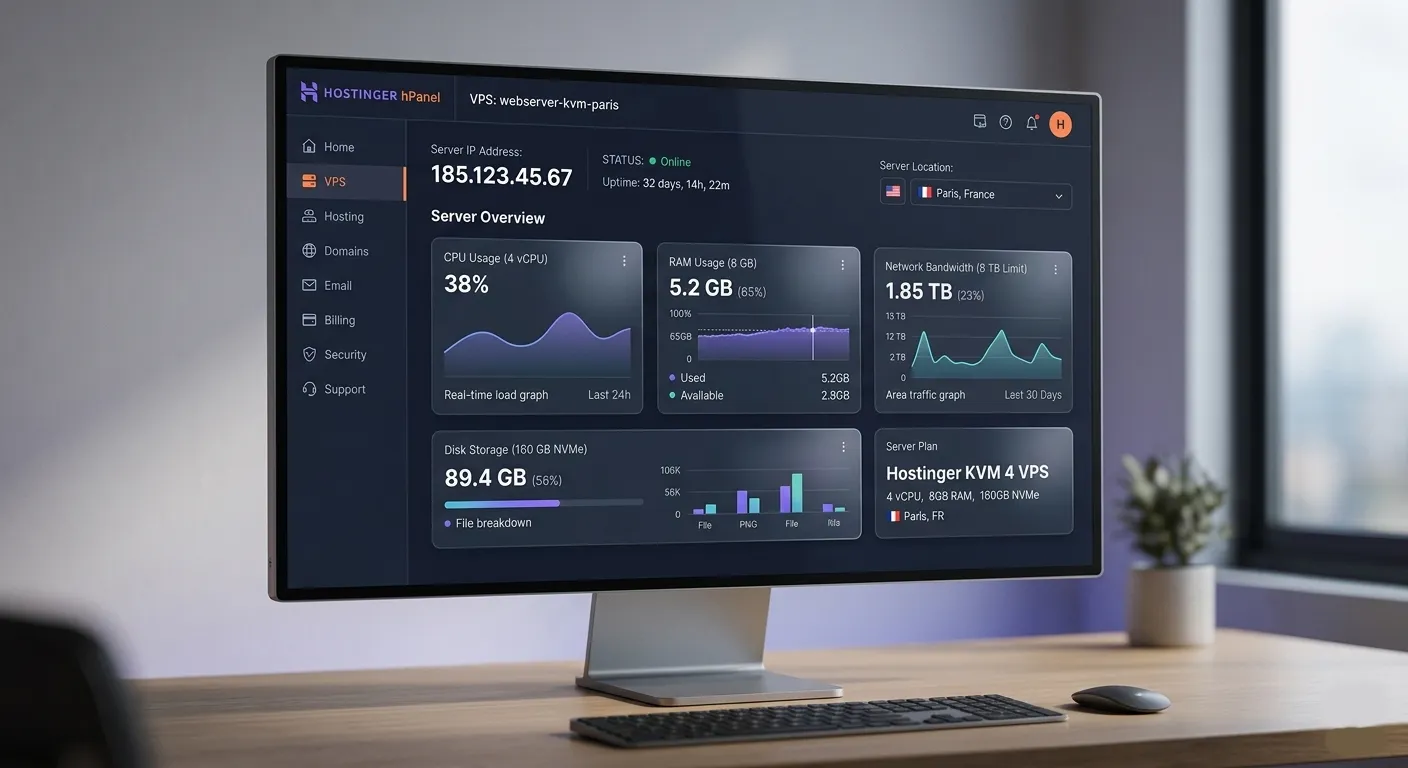
hPanel VPS overview screen showing IP, plan, and server location selector
A Hostinger VPS plan (KVM 2 recommended for small production).
A domain name (optionally registered via Hostinger).
An SSH client: Terminal (macOS or Linux) or PuTTY (Windows).
Basic command-line familiarity.
Your Node.js app (or a sample), ideally in a Git repo.
Step-by-step deployment
a. Set up the VPS
In hPanel, choose a plan, pick a server location near your users, select an OS template (Ubuntu 24.04 LTS recommended, or a MERN or MEVN template that pre-installs Node, PM2, Nginx, and Certbot), set a strong root password, and note your server's IP (hPanel: VPS to Manage to Overview).
b. Connect via SSH
ssh root@your_server_ipc. Initial hardening
apt update && apt upgrade -y
adduser deploy
usermod -aG sudo deploy
Set up SSH keys (generate locally with ssh-keygen -t ed25519, copy with ssh-copy-id deploy@your_server_ip), then harden /etc/ssh/sshd_config with PermitRootLogin no and PasswordAuthentication no and reload SSH. Configure the firewall:
ufw allow OpenSSH
ufw allow 80
ufw allow 443
ufw enable
Install fail2ban: apt install fail2ban -y. Keep a second SSH session open while changing SSH config to avoid locking yourself out.
d. Install Node.js via NodeSource (Node 24 LTS)
Per the official NodeSource distributions repo:
curl -fsSL https://deb.nodesource.com/setup_24.x | sudo -E bash -
sudo apt install -y nodejs
node -v
npm -v
For production, install Node via NodeSource (system-wide, apt-managed) rather than nvm (per-user). nvm Node lives in the user home directory, which complicates systemd services and access by other users. Node.js 24 "Krypton" is the recommended Active LTS for new production work in 2026 per the official Node.js release schedule: it is supported through the end of April 2028. Node.js 22 is in maintenance LTS (end-of-life April 30, 2027), and Node.js 26 is the current line (does not reach Active LTS until October 20, 2026). Use 24.
e. Get the app on the server
git clone https://github.com/you/your-app.git
cd your-app
npm install
Create a .env for secrets and run npm run build if your app requires a build step.
f. Run persistently with PM2
Per the official PM2 quick start:
sudo npm install -g pm2
pm2 start app.js --name my-app
pm2 startup systemd
pm2 save
pm2 logs
pm2 monit
A process manager keeps the app alive after crashes and reboots. pm2 startup generates a systemd service. pm2 save persists the process list so PM2 knows what to restart on boot.
g. Nginx reverse proxy
sudo apt install nginx -y
sudo nano /etc/nginx/sites-available/my-app
server {
listen 80;
server_name yourdomain.com www.yourdomain.com;
location / {
proxy_pass http://127.0.0.1:3000;
proxy_http_version 1.1;
proxy_set_header Upgrade $http_upgrade;
proxy_set_header Connection 'upgrade';
proxy_set_header Host $host;
proxy_set_header X-Real-IP $remote_addr;
proxy_set_header X-Forwarded-For $proxy_add_x_forwarded_for;
proxy_set_header X-Forwarded-Proto $scheme;
proxy_cache_bypass $http_upgrade;
}
}sudo ln -s /etc/nginx/sites-available/my-app /etc/nginx/sites-enabled/
sudo nginx -t
sudo systemctl reload nginxA reverse proxy handles ports 80 and 443, terminates SSL, and forwards to your Node port so the app is never directly exposed to the internet. The Upgrade and Connection headers are mandatory for WebSocket support per the official Nginx WebSocket docs.
h. Point the domain
Create an A record pointing your domain (and the www host) to the VPS IP. DNS propagation can take from minutes up to a few hours.
i. Free SSL with Certbot
The officially recommended method per certbot.eff.org is snap:
sudo snap install core; sudo snap refresh core
sudo snap install --classic certbot
sudo ln -s /snap/bin/certbot /usr/bin/certbot
sudo certbot --nginx -d yourdomain.com -d www.yourdomain.com
Alternatively, the simpler apt method: sudo apt install certbot python3-certbot-nginx -y then sudo certbot --nginx. Certbot auto-configures HTTPS, offers to set up an HTTP-to-HTTPS redirect, and installs a renewal timer. Verify auto-renewal:
sudo certbot renew --dry-runj. Verify and test
Visit https://yourdomain.com, confirm pm2 list shows the app online, and that systemctl status nginx is active.
Specific app types
Express or Node API. Bind to
0.0.0.0so the reverse proxy can reach it (or 127.0.0.1 when Nginx is on the same host), load env via dotenv, run with PM2, and proxy via Nginx.Next.js in Node mode.
next buildthennext start(for examplepm2 start npm --name web -- start), proxied by Nginx. Setoutput: "standalone"innext.config.jsfor smaller, faster deploys, and cache/_next/static/aggressively in Nginx. The same standalone output that we cover for ECS Fargate in our Next.js on AWS guide applies here.Socket.io or real-time. The Upgrade and Connection headers are mandatory. Raise
proxy_read_timeout, disableproxy_buffering, and useip_hashsticky sessions if you load-balance multiple instances.
Ongoing management and best practices
Updates.
git pull && npm install && pm2 reload my-appfor zero-downtime deploys.Monitoring.
pm2 monit, plus the Hostinger panel.Logs. Install pm2-logrotate and set
max_size,retain, andcompress(for examplepm2 set pm2-logrotate:max_size 50M).Backups. Hostinger weekly backups plus your own scheduled database dumps.
Security. Enable
unattended-upgradesfor automatic security patches, paired with a periodic reboot window.Secrets. Keep them in
.env(chmod 600) or a PM2 ecosystem env block, never in Git.Databases. Local PostgreSQL, MySQL, or MongoDB on small setups, or a managed database as you grow.
Scaling. PM2 cluster mode (
pm2 start app.js -i max) uses all available CPU cores. Cluster mode requires a stateless app. Use Redis for shared session and WebSocket state.Swap. Add a swap file on small plans to avoid out-of-memory kills.
Common pitfalls and troubleshooting
App not accessible: app bound to localhost instead of
0.0.0.0, wrong port, or firewall not allowing 80 or 443.PM2 crash loop: check
pm2 logs.Nginx 502 Bad Gateway: the app is down or
proxy_passpoints at the wrong port.Forgetting
pm2 saveorpm2 startup: the app vanishes after a reboot.Running as root: create and use a non-root sudo user.
No SSL: run Certbot.
Promo vs renewal pricing surprise: budget for the higher renewal rate.
Out of RAM on KVM 1: add swap.
Env vars not loaded: confirm dotenv is required early and that
NODE_ENVis set to production.
Hostinger-specific helpers
hPanel for management. One-click OS, control-panel, and application templates (including MERN and MEVN stacks with PM2, Nginx, and Certbot pre-installed). The Kodee MCP-powered AI assistant built into the browser Web terminal (it can read logs and configs and run commands via natural language, with confirmation required for destructive actions). A browser-based Web terminal for one-click root access. Manual snapshots (one at a time) and free weekly backups. Wanguard DDoS protection. The Monarx malware scanner. A public API with an MCP server.
When to get help
A production deployment is more than getting a process running. It involves SSH hardening, firewall and fail2ban configuration, SSL issuance and renewal, zero-downtime deploys, monitoring, backups, and database management, all of which are ongoing responsibilities. A founder focused on the product may prefer an experienced team to set this up correctly and keep it running. Brandrums covers the full lifecycle through our website development, web application development, and app design and development retainers, plus the ongoing operations layer. The team-cost lens is in our Malta developer hiring guide, and the US-market band is in our USA custom development cost guide. The same review discipline we cover in our web app redesign checklist and contract questions guide applies to a fresh deploy too: scope the maintenance load before signing.
Key takeaways
A Hostinger KVM VPS is the right fit for cost-conscious devs and small businesses who want full control for side projects through small production apps. Not the right fit for managed autoscaling or enterprise SLAs.
2026 stack: Ubuntu 24.04 LTS + Node.js 24 "Krypton" via NodeSource + PM2 + Nginx + Certbot.
KVM 2 (2 vCPU, 8 GB) is the recommended starting point for small production. Move to KVM 4 when sustained CPU or RAM use climbs.
Promo prices are intro only. Budget for renewal. Daily backups are a paid add-on, weekly are free.
Harden before you deploy: non-root sudo user, SSH keys, password login disabled, UFW, fail2ban, unattended-upgrades.
FAQ
Can I run Next.js on a Hostinger VPS?
Yes. Use next build followed by next start behind PM2, then proxy through Nginx. Set output: "standalone" in next.config.js for smaller, faster deploys. For the AWS-side comparison see our Next.js on AWS guide.
Is Node 24 really the right LTS in 2026?
Yes. Per the official Node.js release schedule, Node.js 24 ("Krypton") is the current Active LTS, supported through the end of April 2028. Node.js 22 is in maintenance LTS (end-of-life April 30, 2027), and Node.js 26 is the current line and does not reach Active LTS until October 20, 2026. Use 24 for new production work.
Should I install Node via nvm or NodeSource?
NodeSource for production. The apt-managed system-wide install integrates cleanly with systemd and is easier for multi-user setups. nvm is fine for development, but its per-user install complicates services and other users on the box.
Do I need Nginx, or can I expose Node directly?
Use Nginx. It terminates SSL, handles ports 80 and 443, lets you serve static assets efficiently, supports WebSocket upgrades, and keeps Node off the public internet. The Node process binds to a local port and Nginx forwards traffic.
How much does the daily-backup add-on cost?
It is not published as a fixed dollar figure on Hostinger's official pages. A third-party 2026 review reports the checkout price as $6.00 a month, plan and term dependent. Verify in cart before relying on the number.
What does the Hostinger renewal price look like?
Higher than the intro. Per the official pricing page, KVM 1 renews at $11.99 a month, KVM 2 at $14.99, KVM 4 at $28.99, and KVM 8 at $49.99. Budget for the renewal, not the promo.
Is Certbot the right SSL choice?
Yes for most setups. The officially recommended install method is snap, but the apt method (python3-certbot-nginx) works fine on Ubuntu 24.04. Install via one method only to avoid version conflicts.
When should I move off a VPS?
When you need managed autoscaling, multi-region failover, formal compliance (SOC 2 audited infra), or you are spending more on ops time than the difference in platform cost. At that point either move to a managed platform or engage a partner to run the stack for you.
Ready to ship without becoming a sysadmin?
Most teams underestimate the maintenance side of a VPS until something breaks at the worst time. We help clients stand up Hostinger and other VPS deployments correctly the first time (SSH hardened, SSL automated, deploys scripted, backups verified) and then keep them running. Same discipline we apply through website development, web application development, SaaS development, and digital marketing retainers. Tell us your stack and traffic shape and we will recommend the right setup. Or check our pricing options if you are scoping engineering support alongside the infrastructure spend.